
Imagine you are writing a complex novel. Every time you finish a chapter, you want to save a version of it so that if you make a mistake in the next chapter, you can go back to exactly how it was before.
Now, imagine you are writing this novel with ten other authors simultaneously. You need a way to merge everyone's sentences together without overwriting each other's work. This is exactly what GitHub does, but for software code instead of novels.
To understand GitHub, you first need to understand Git. Git is a Version Control System, a tool that tracks every small change made to a file.
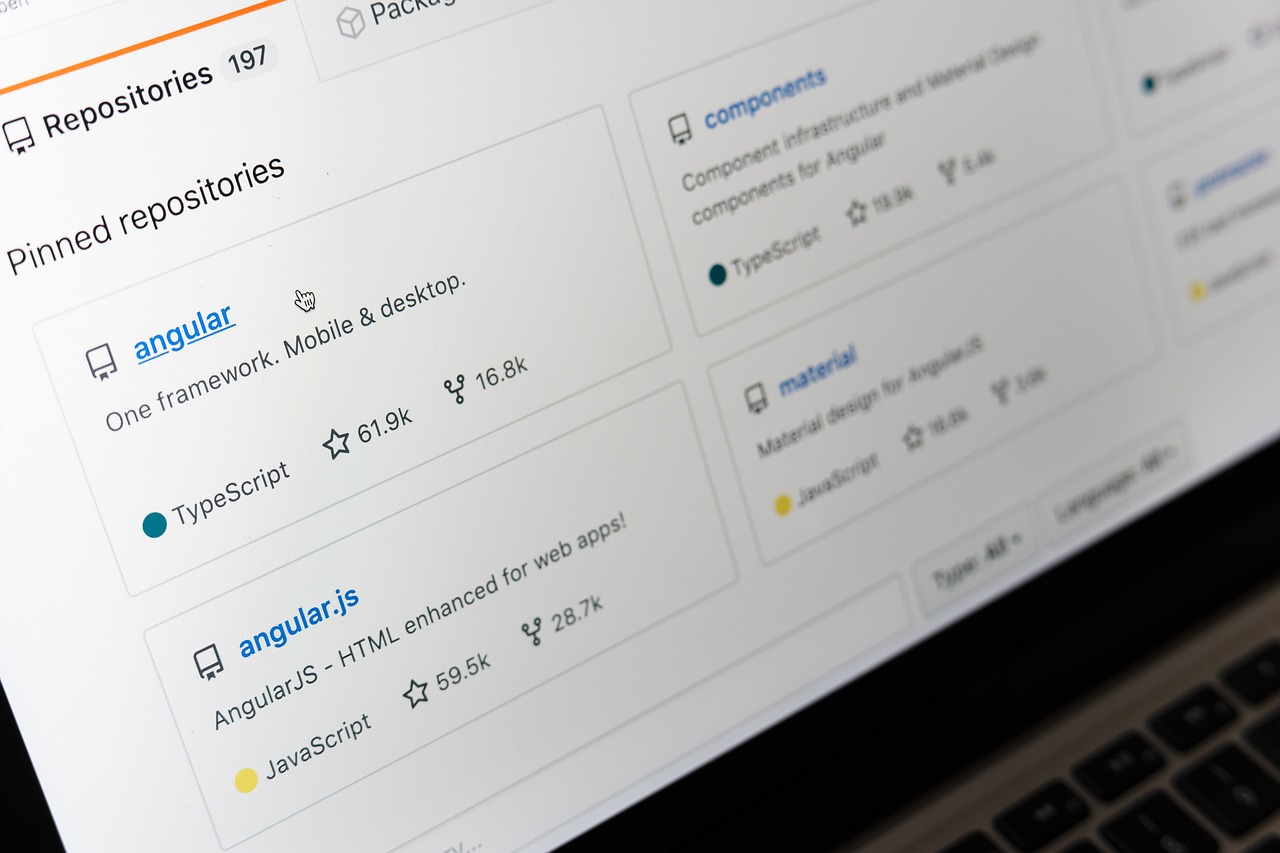
GitHub is the cloud-based platform that hosts these Git projects. While Git is the engine that tracks changes, GitHub is the garage where you store your car and show it off to the world. It is the world’s largest hosting service for software development, providing a social interface where developers can share, review, and collaborate on code from anywhere across the globe.
- Git = tracks changes (version control system)
- GitHub = hosts your Git projects online
Think of it as:
Git = engine
GitHub = cloud storage + collaboration
Why GitHub is Essential for Modern Development
GitHub has become the industry standard for several critical reasons.
First and foremost is collaboration. In the professional world, software is rarely built by a single person. GitHub allows multiple developers to work on the same codebase through branching. One person can work on a new feature while another fixes a bug, and their work can be merged seamlessly later.
Beyond collaboration, GitHub acts as a professional portfolio. For developers, a GitHub profile is often more valuable than a traditional resume. It shows:
- Code quality
- Consistency
- Contribution history
- Collaboration skills
It also provides safety, your code is stored in the cloud, so you won’t lose it if your computer crashes.
Finally, GitHub enables open-source development, allowing anyone to contribute to major projects like Linux, React, or VS Code, driving global innovation.
Everyday Workflow:
git status          # Check changes
git add .           # Stage changes
git commit -m "msg" # Save snapshot
git push            # Upload to GitHub
Essential Commands:
Setup & Clone
git init                # Start repo
git clone <url>         # Copy repo locally
Tracking Changes
git status              # See file states
git add <file>          # Stage one file
git add .               # Stage everything
git restore <file>      # Undo changes
Saving Work
git commit -m "message" # Save snapshot
git log                 # View history
Syncing with GitHub
git push                # Upload changes
git pull                # Download changes
Branching
git branch              # List branches
git checkout -b <name>  # New branch + switch
How to Initialize a New Project with Git and GitHub:
When you want to upload a local project to GitHub for the first time:
- Create a new repository on GitHub
(Do not initialize it with a README if you already have code) - Open your terminal in the project folder and run:
git init
git add .
git commit -m "first commit"
git branch -M main
git remote add origin <url>
git push -u origin main
What each step does:
- git init - Starts tracking your project
- git add . - Prepares all files
- git commit - Saves a snapshot
- git branch -M main - Sets main branch
- git remote add origin - Links to GitHub repo
- git push -u origin main - Uploads your code
Decoding Git Status Messages:
Running git status gives you insight into what’s happening in your project.
"Changes not staged for commit"
This means:
- You modified files
- Git is tracking them
- But you haven’t added them to the next commit yet
Example:
You edit a file > Git notices > but waits for you to run git add.
"Untracked files"
This means:
- Files exist in your folder
- Git is not tracking them yet
To include them:
git add <file>or
git add .
Official site: https://docs.github.com/en